Real-Time Voice Translation in a Browser, No App
By Mark Fulton ·
Last verified:
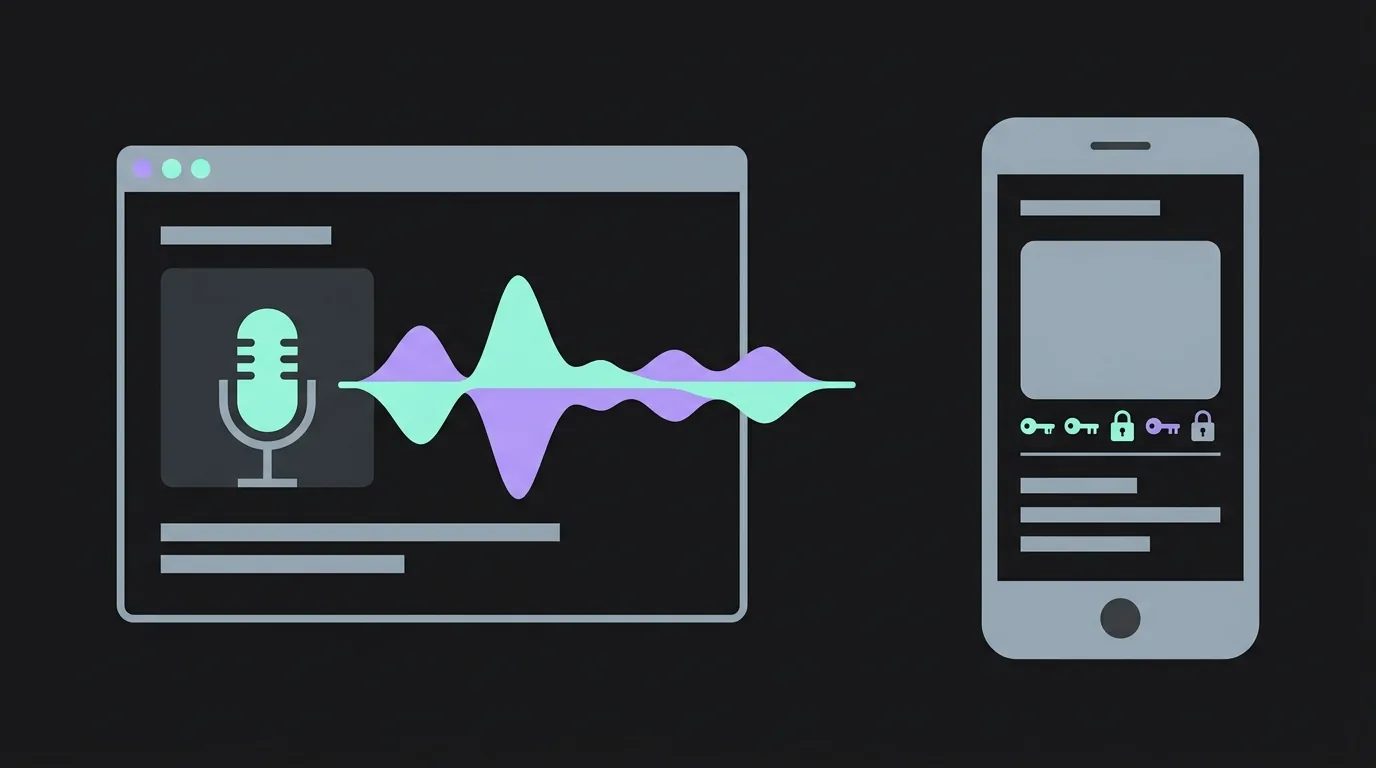
A modern browser can do real time voice translation properly. It asks for the microphone once, for that one website, and it keeps nothing on your device when you close the tab. That makes the web the right architecture when you are on a borrowed laptop, a work phone you cannot install on, or a device whose app store is not in your language. It is the wrong architecture when you need translation running with the screen off, in the background, or with no signal. An installed app is granted a longer leash by the operating system, and that leash is exactly what buys you lock screen operation and offline packs. Neither one is the honest default. The question is which set of trade-offs matches the conversation you are about to have.
I sell a translation earbud kit and a browser translation app, AI Translation Live, so I am not neutral about this. What I can do is lay out both architectures accurately, including the parts where the browser loses, because you will find out within five minutes of trying it anyway and I would rather you heard it here.
Most pages in this space skip the comparison entirely. A translator hardware brand frames the choice as device versus device. An app publisher frames it as app versus nothing. Web tools tend to say "no installation required" in one line and then never mention what that costs you. So here is the whole picture, with the permission models on both sides checked against the actual platform documentation rather than described from memory.
What does installing a translation app actually grant it?
More than most people picture, and for good reasons rather than sinister ones.
On Android, microphone access is a runtime permission. Google's guide to requesting runtime permissions puts RECORD_AUDIO in the same tier as location and camera: the system shows a dialog, you approve or refuse, and from Android 11 onward that dialog includes an "Only this time" option alongside the persistent grants. Choose a persistent grant and it stays until you revoke it in settings. There is one automatic expiry: the same documentation describes app hibernation, where an app targeting Android 11 or higher that you have not used for a few months has its sensitive runtime permissions reset for you.
On Apple platforms the shape is similar but the declaration comes earlier. An iOS app cannot touch the microphone at all unless the developer has declared NSMicrophoneUsageDescription in the app's information property list. That string is the sentence you read in the permission prompt, and its absence is not a soft failure. Apple requires the key for microphone access across iOS, macOS, tvOS and watchOS.
Two things follow from that, and they matter more than the prompt itself.
The first is that the grant attaches to the app, not to a page. It survives reboots, app updates and being switched away from. That persistence is the feature. It is what lets an app keep listening while you put the phone in your pocket.
The second is that installing means running someone's code on your device permanently. It updates itself. It can ask for further permissions later, at a moment you are less alert than you were during setup. It can register background work. It may require an account before it will translate a single sentence. None of this is unusual or dishonest, but it is a real thing you agreed to, and it is the thing a web page cannot do.
What can a browser do with a microphone now?
Considerably more than it could when this category's marketing was written.
The relevant capability is getUserMedia, and MDN's reference for MediaDevices.getUserMedia() sets out the rules plainly. It is available only in a secure context, so the page has to be served over HTTPS. It always requires explicit user permission. Permission is granted per origin, meaning per website, and only the top level document can ask; an embedded frame has to be handed the capability deliberately. Browsers are required to show a visible indicator while capture is running. The support baseline is old news at this point: MDN records Safari support from version 11, with iOS Safari mirroring desktop, alongside Chrome, Edge and Firefox.
There is also a way for a page to check where it stands before it asks. The Permissions API exposes a microphone permission name whose state reads as granted, denied or prompt. Browser compatibility data puts that name in Chrome from version 64, Safari from 16 and Firefox from 132, which is why a well built web tool can tell you "your browser has already blocked this" instead of firing a prompt that will never appear.
One thing worth knowing, because it explains why serious browser translators are built the way they are: the Web Speech API's SpeechRecognition interface is not a dependable foundation. MDN classes it as limited availability rather than baseline. Compatibility data shows Chrome supporting it prefixed as webkitSpeechRecognition since version 33 and unprefixed only from 139, Safari supporting the prefixed form from 14.1, and Firefox implementing it from 142 behind a preference that is off by default. MDN also notes that in browsers like Chrome the recognition runs on a server, so your audio leaves the machine regardless.
So a browser tool that leans on SpeechRecognition inherits a support matrix full of holes. One that captures audio with getUserMedia and streams it over a real time connection to a translation model does not. That is the route AI Translation Live takes, and it is the reason the demo on the AI Earbuds home page works the same way in Safari on an iPhone as it does in Chrome on a desktop.
The same conversation, run both ways
Here is one ordinary exchange, you and a taxi driver, handled twice. The left column is a native app you install. The right column is a page you open. What each one asks for is listed at the step where it asks.
| Step | Native app | Browser tab |
|---|---|---|
| 1. Getting to it | Open the store, find the listing, download and install the package, wait. Store account required. | Type or tap a URL. The page loads. Nothing is installed and no account is needed to reach it. |
| 2. Before anything runs | The app ships a declared microphone purpose string (NSMicrophoneUsageDescription on Apple platforms) or a manifest permission (RECORD_AUDIO on Android). |
The page must be on HTTPS. Without a secure context the microphone interface is simply not there. |
| 3. First tap of the button | System prompt: allow microphone. On Android 11 and later you can pick "Only this time" instead of a persistent grant. | Browser prompt: allow microphone for this site. The grant is scoped to that one origin, and the browser shows a recording indicator. |
| 4. Speaking | Audio captured by the app, sent to whichever backend the vendor uses. | Audio captured by the tab and streamed to the translation model over an encrypted connection. |
| 5. Someone messages you and you switch apps | The app can keep the microphone alive if it holds a qualifying foreground service, with a persistent notification. | The document is now hidden. Capture is at the mercy of background tab throttling, and any screen wake lock is released. |
| 6. Phone locks in your pocket | Possible by design, with the right service type declared. | Not available. This is the clean loss. |
| 7. Afterwards | The app is still installed. Its permission stands until you revoke it or hibernation resets it. Your account still exists. | Close the tab and the session ends. The site permission sits in your browser's site settings until you clear it. |
Read row six twice. It is the one that decides the architecture for a lot of people, and it does not go our way.
What do you give up without an app?
Five things, concretely.
The tab has to stay in front. This is the big one. A page can ask to keep the screen awake through the Screen Wake Lock API, and support is now broad: Chrome from 84, Firefox from 126, Safari from 16.4, and iOS Safari from 18.4 with a partial implementation before that which did not work in Home Screen web apps. But the lock is released the moment the document becomes hidden, and the page has to request it again when you come back. Switch to your messages mid conversation and you have interrupted the session.
No lock screen and no background operation. An Android app can hold the microphone in the background by declaring a microphone foreground service type, which since Android 14 requires both the FOREGROUND_SERVICE_MICROPHONE manifest permission and the RECORD_AUDIO runtime grant. There is no web equivalent. If your use case is a two hour walking tour with the phone in a pocket, install something.
No offline. Downloaded language packs are an app capability. A tab needs a live connection every time, and a hotel basement or a rural bus will end the session. If you want the detail on why that is true of most of this category and not just of us, I wrote it up in do translation earbuds need wifi.
Nothing in your app drawer. You have to remember the URL or bookmark it. An icon on a home screen is a genuine usability advantage, and an installed app has one by default.
In-app browsers are a different environment. Open a link from inside a social app and you land in that app's embedded web view rather than your real browser, with its own permission state and its own quirks. On a phone, the fix is to open the page in the actual browser first.
Set against that, what you gain is narrower than "no install" makes it sound, but it is real: nothing to download over hotel wifi, no store account, no code left behind, no background permissions you forget about, and identical behaviour across an iPhone, an Android and whatever laptop is on the desk.
How does this change on a borrowed or work device?
This is where the browser stops being a convenience and starts being the only option.
A managed work laptop or phone frequently cannot install anything. That is not a hypothetical; it is the default posture of most corporate device management. A web page is not an install, so it goes right past that wall. The same is true of a hotel business centre machine, a conference laptop, a friend's tablet and a family member's phone that is already full.
The other half is what you leave behind. On someone else's machine an installed app means an app, an account, a login session and a permission grant that all have to be cleaned up by hand, and usually are not. A tab means closing the tab.
Be careful with the part that does persist, though, because "leaves nothing behind" is not literally true. The microphone grant lives in that browser profile for that origin until someone clears it in site settings, and if you signed in, the session cookie lives there too. On a shared device, sign out and clear site data for the origin when you are done. That takes twenty seconds and it is the difference between an honest claim and a marketing one.
What about lock-screen and background use?
Plainly: the browser does not do it, and no amount of engineering on our side changes that.
The platform rules are the rules. Android grants continuous background microphone capture to an app holding the correct foreground service type, with a notification the user can see. Apple grants comparable behaviour to apps that declare the appropriate background capability. A web page gets neither. Hidden documents are throttled, wake locks release on visibility change, and a locked phone ends the session.
There is a partial workaround worth knowing. Add the page to your home screen and it launches without browser chrome, which makes it feel like an app and removes the tab bar from the equation. It does not change any of the above. The document still has to be visible.
So if your requirement is translation running unattended, choose an app. If your requirement is a conversation you are actually present for, with the screen in front of you, the visible tab constraint costs you nothing, because you were looking at the thing anyway.
Which architecture fits your situation?
Sorted by the question that actually decides it.
Choose the browser when you are on a device you do not own or cannot install on, you switch between a phone and a laptop, you need it to work for the other person too by sending them a link, you want nothing left behind afterwards, or you simply want to test whether real time translation is good enough before spending money on anything.
Choose an installed app when you need it running with the screen off, you need offline language packs for somewhere with no signal, you want an icon on your home screen, or you want operating system integration like share sheets and voice assistant shortcuts.
Choose earbuds plus either one when the problem is not the translation software but the microphone. A phone on a café table is a metre from the speaker and pointed at the ceiling; a bud in an ear is a few inches from a mouth and aimed at it. Every stage downstream inherits that recording, which is why how translation earbuds actually work spends most of its length on capture rather than on models. If you are weighing the hardware itself, translation earbuds vs phone apps is the more useful page.
For what it is worth, the reason I built our translation layer as a web app rather than a native one is the borrowed device case and the send-someone-a-link case, not because the web is superior. Where an app wins, it wins, and I would rather say so than pretend the trade-off is not there.
You can settle the quality question yourself in under a minute. Open the AI Earbuds home page on whatever device is nearest, press the button, allow the microphone, and speak. That is the whole install process, and if it does not sound good enough to you, you have lost a minute and nothing else.
Frequently asked questions
Can a website do real-time voice translation?
Yes. A web page can request microphone access through getUserMedia, which MDN documents as requiring a secure HTTPS context and explicit per site user permission, and it can stream that audio to a translation model over a real time connection. The capability has been present in Safari since version 11 and across Chrome, Edge and Firefox for years. What a website cannot do is capture audio while it is hidden, backgrounded or locked.
Is browser translation as fast as an app?
For the same underlying model, the architecture is not what determines the delay. Both a native app and a browser tab capture audio locally and send it to a model, and the round trip to that model plus the model's own processing accounts for the bulk of the wait in either case. Where the browser genuinely loses on speed is when a tool relies on the Web Speech API, whose recognition runs server side in several browsers and whose support MDN classes as limited rather than baseline. Tools built on a direct real time audio connection avoid that path. Treat any specific latency figure on a marketing page as unverified until you have tested it on your own connection with your own language pair.
Does browser translation work on iPhone?
Microphone capture does, in Safari on iOS, and has since Safari 11. The Screen Wake Lock API arrived in iOS Safari at 16.4 with a partial implementation and became complete in 18.4, so on an older iPhone expect the screen to dim on its own during a long session. The real iPhone caveats are the same as everywhere else: the tab must stay visible, locking the phone ends the session, and a link opened inside another app's embedded browser is a different environment from Safari proper. Open the page in Safari itself, or add it to your home screen.
Do I need to install anything to use it?
No. AI Translation Live runs in the browser you already have. You open a URL and allow the microphone for that one site, which is a grant you can revoke in your browser's site settings at any time, and there is no download, no app store account and no software left on the machine when you close the tab. The trade-off is the one described above: no lock screen operation and no offline mode. If either of those is a requirement for you, a native app is the better architecture and I would rather you knew that before you paid for anything. If you want the detail on where the audio actually travels once you press the button, that is covered in translation earbuds and privacy.